
Everyday use
Layout
Windowed, Framed or Dynamic: one page at a time, or the list and what you open side by side.
The layout decides what happens when you open something from a list on Notes, Review Inbox or Skills. There are three.
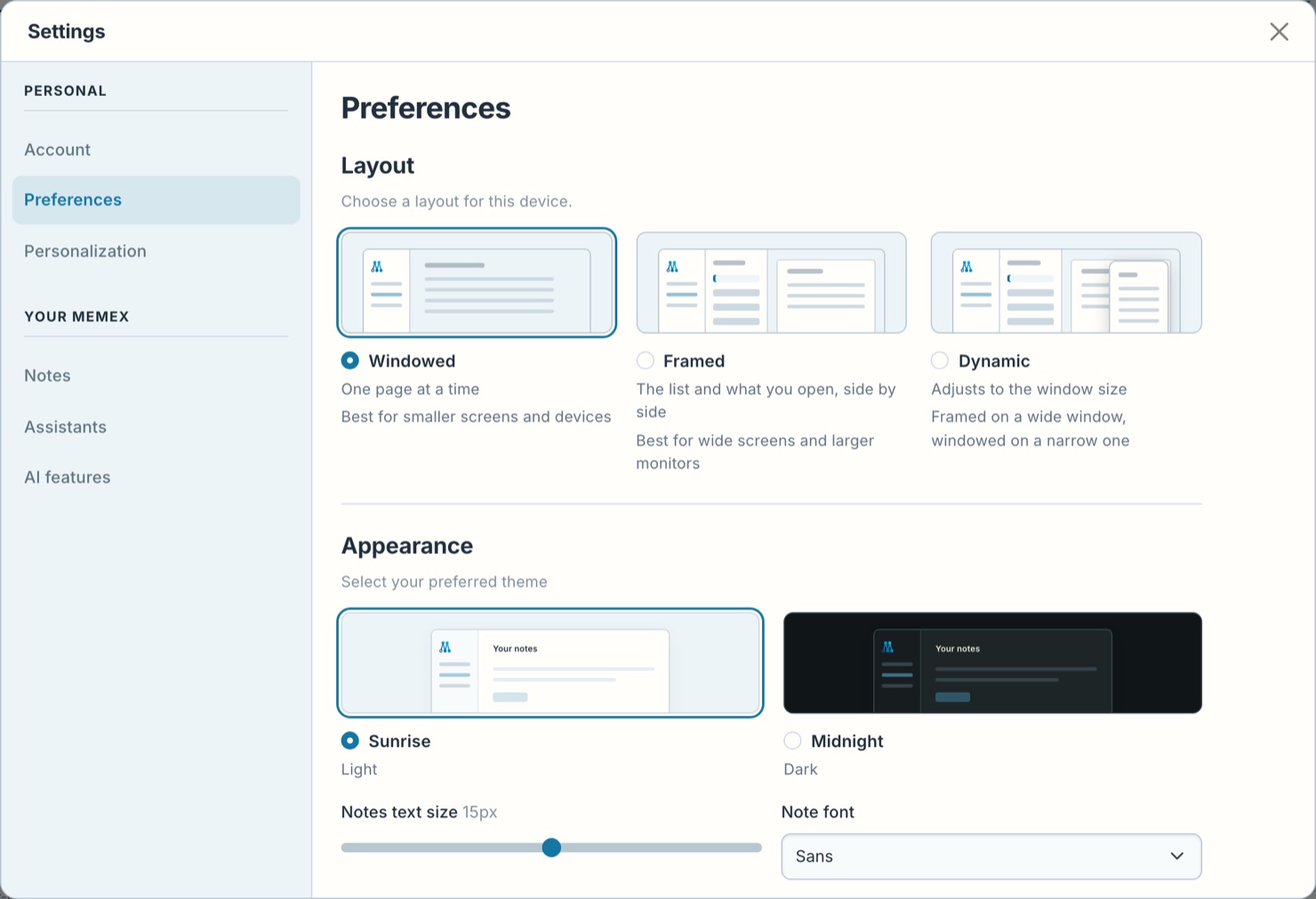
Windowed
One page at a time. Click a note and it fills the window. Go back to see the list again.
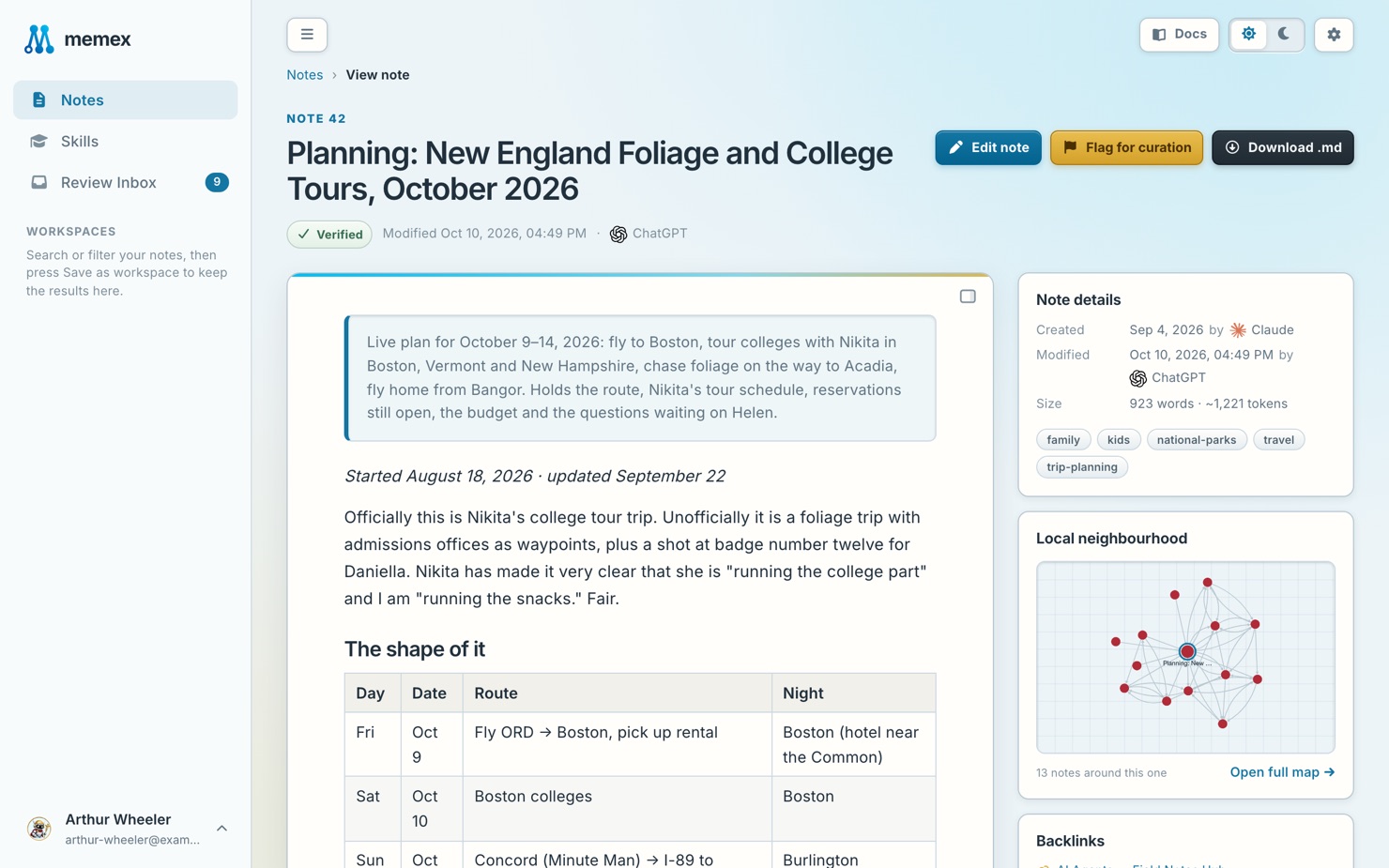
Best for phones, tablets and small screens. This is the default.
Framed
The list stays on the left, and what you click opens on the right. Click another row and only the right side changes, so you never lose your place in the list.
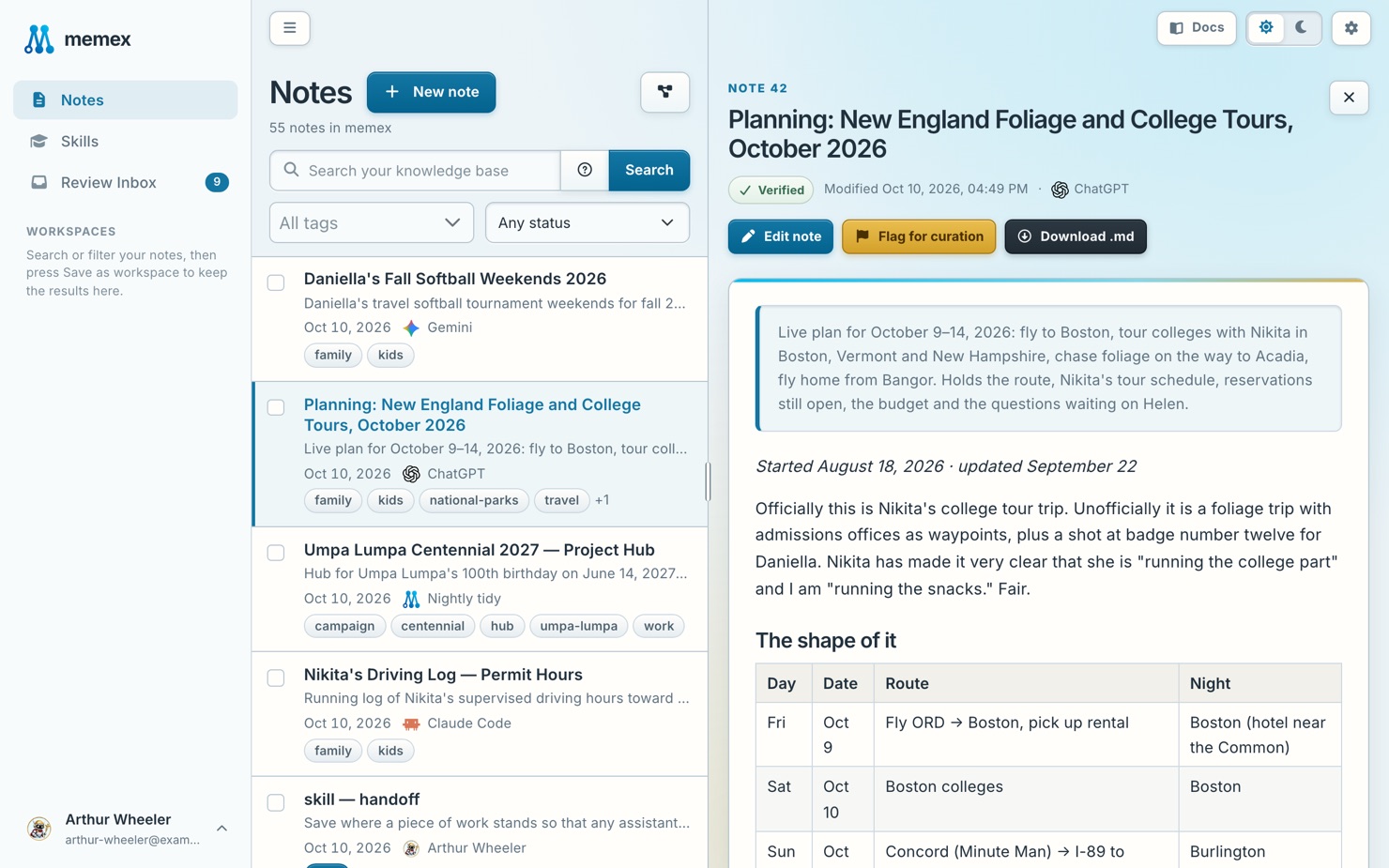
On Review Inbox the right side shows the change to review; on Skills, the skill.
Best for wide screens and big monitors.
Dynamic
Dynamic switches between the two for you, by the width of the window. A wide window shows frames. Make it narrower and you get one page at a time; widen it and the list comes back.
Choose it if you use the same browser on a laptop and on a big monitor, or often resize the window. Hiding the sidebar makes room for frames sooner.
Choose a layout
Open Preferences
Press the gear at the top right, then Preferences.
Pick a layout
Under Layout, choose Windowed, Framed or Dynamic. It changes at once.
Use frames
| To | Do this |
|---|---|
| Open something | Click its row. A link inside a note opens on the right too. |
| Make the list wider or narrower | Drag the line between the two sides. Double-click it to reset. |
| Jump between the two sides | Press F6. |
| Close what’s open | Press Esc, or × at its top right. |